


Best Video Editors for Low-End PC (Complete Beginner Guide)
Those with pricey computers are no longer the only ones who can edit videos. Many beginners, students, YouTubers, freelancers, and small business owners use low-end PCs and still create good-quality videos. If your computer has low RAM, an old processor, or no graphics card, you can still edit videos smoothly — you just need the right software.
In this blog, I will explain the best video editors for low-end PCs, their features, system requirements, and which one is best for different users. This guide is written in simple language so anyone can understand it easily.
Video editing is becoming more popular every day. From YouTube videos to business promotions and social media content, everyone wants to create videos. But one common problem many people face is having a slow or low-spec computer.
A powerful laptop or gaming PC is out of reach for some people. There are many video editing programs made especially for low-end PCs that work smoothly and give good results.
We’ll talk about the best video makers for low-end computers, explain their features in simple terms, and help you pick the right one for your needs.
What Is a Low-End PC?
Before choosing a video editor, it is important to understand what a low-end PC means.
A low-end PC usually has:
- 2GB to 8GB RAM
- Intel i3, i5 (older generation), AMD Ryzen 3, or similar processor
- No dedicated graphics card (integrated graphics only)
- Windows 7, 8, 10, or 11
- Limited storage space
If your computer becomes slow when opening heavy software like Adobe Premiere Pro, then your PC is considered low-end for video editing.
Why Choosing the Right Video Editor Matters
Many people download professional video editors without checking system requirements. As a result:
- The software crashes
- Video preview lags
- Export takes too much time
- PC becomes very slow
A lightweight video editor saves time, reduces frustration, and helps you work smoothly even on an old computer.
Why Heavy Video Editors Don’t Work Well on Weak PCs
A lot of new users download professional programs like Adobe Premiere Pro or DaVinci Resolve without first making sure they meet the standards.
On low-end PCs, such software causes:
- Very slow performance
- Freezing and lag
- Crashes during export
- Long rendering times
That’s why choosing lightweight video editing software is very important.
1. Shotcut – Best Free Editor for Low-End PC
Shotcut ↗ is one of the best free video editors for low-end PCs. It is open-source, lightweight, and works well on older systems.
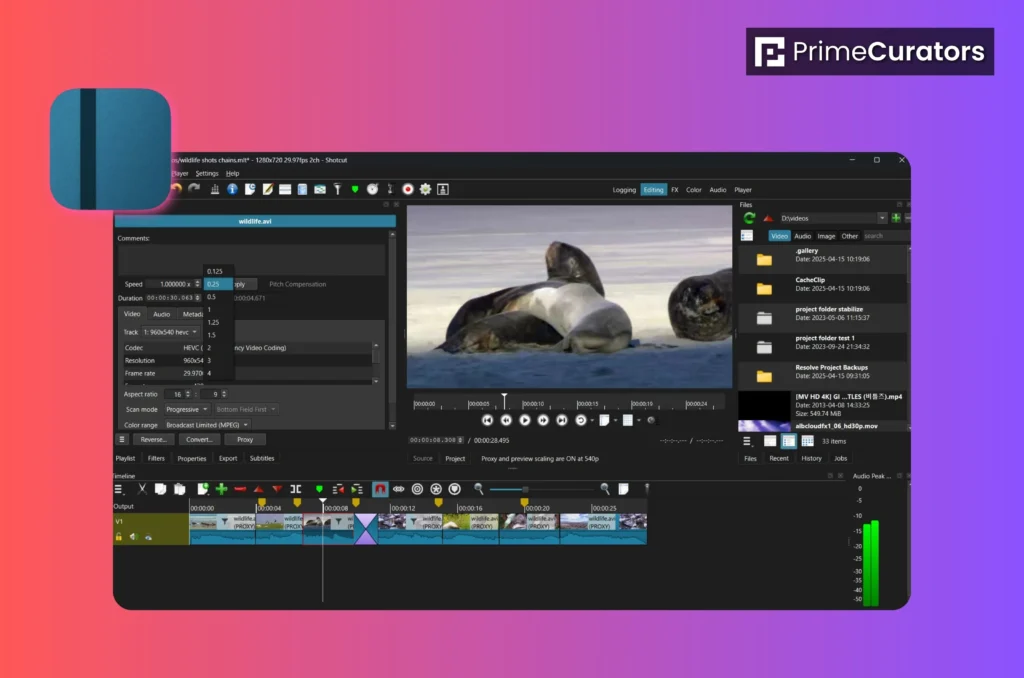
Why Shotcut Is Good:
- Completely free
- No watermark
- Supports many video formats
- Simple interface
- Works without a graphics card
System Requirements:
- RAM: 4GB (2GB also works for basic editing)
- Processor: Dual-core or better
Features:
- Cut, trim, and merge videos
- Basic transitions
- Filters and color correction
- Audio editing
- YouTube export presets
✂️ Timeline Editing
- Cut, slice, trim and rearrange clips easily on the timeline.
- You can zoom in on the timeline to fine-tune edits.
- Supports multiple video and audio tracks — useful for layering music and voiceovers.
🖼 Wide Format Support
Shotcut accepts almost every video, audio, and image format without needing conversion first. This means you can import:
- MP4, MOV, AVI, MKV videos
- MP3, WAV audio
- PNG, JPG images
That saves time because you don’t have to convert files before editing.
🎛 Filters and Effects
Shotcut includes:
- Color correction (brightness, contrast, white balance)
- Sharpness and blur
- Noise reduction
- Text overlay and titles
You can stack multiple filters on one clip and adjust each setting by eye.
🎚 Audio Tools
- Separate audio controls per clip
- Normalize loudness
- Voice enhancement filters
- Ability to remove background noise
This is especially helpful if you record voiceovers with a cheap microphone.
📤 Export Presets
Shotcut makes exporting easier by offering presets like:
- YouTube 1080p
- Vimeo
- Custom resolutions
So you don’t have to guess the best settings.
Why this matters: Shotcut combines simplicity with depth. Beginners can do basic editing, while more advanced users can dive deeper without buying expensive software.
Best For:
- Beginners
- YouTube videos
- Simple editing projects
Shotcut may look simple, but it is powerful enough for regular video editing tasks.
2. OpenShot – Best for Absolute Beginners
OpenShot ↗ is another free video editor that is easy to use and beginner-friendly. If you are new to video editing, OpenShot is a good starting point.
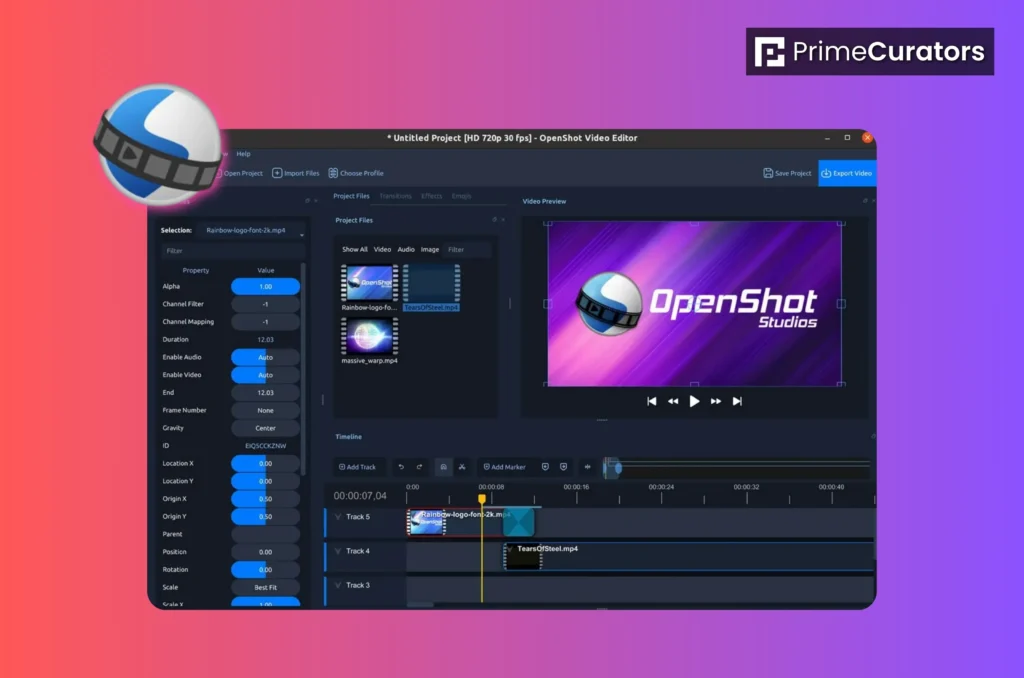
Why OpenShot Is Good:
- Free and open-source
- Clean and easy interface
- Drag and drop editing
System Requirements:
- RAM: 4GB
- Processor: Any basic dual-core
Features:
- Trim and cut videos
- Add titles and text
- Simple transitions
- Audio editing
🧠 Easy Timeline Controls
- Drag and drop clips directly into the timeline
- Quick trim handles to shorten or extend clips
- Easily rearrange clips by dragging
📄 Titles & Text
OpenShot offers:
- Pre-made title templates
- Simple animated text
- Custom color, size, and font control
Great for adding intros or captions.
🔁 Transitions
Transitions smooth the jump from one clip to another. OpenShot includes:
- Fade in / fade out
- Wipe
- Slide
They’re basic, but good for beginner projects.
🖼 Clip Scaling & Rotation
You can adjust size, position, and rotation of clips without exporting out to another app. This helps for picture-in-picture or highlight effects.
🎵 Audio Features
- Change volume per clip
- Fade audio in and out
- Loop background music
Real advantage: OpenShot’s interface is clean — no overwhelm for someone who’s editing for the first time.
Best For:
- Beginners
- Students
- Simple social media videos
OpenShot is not the fastest editor, but for light editing, it works well on low-end PCs.
3. VSDC Free Video Editor – Best for Windows Users
VSDC ↗ is one of the most popular video editors for low-spec Windows computers. It is optimized to work smoothly even without a powerful system.
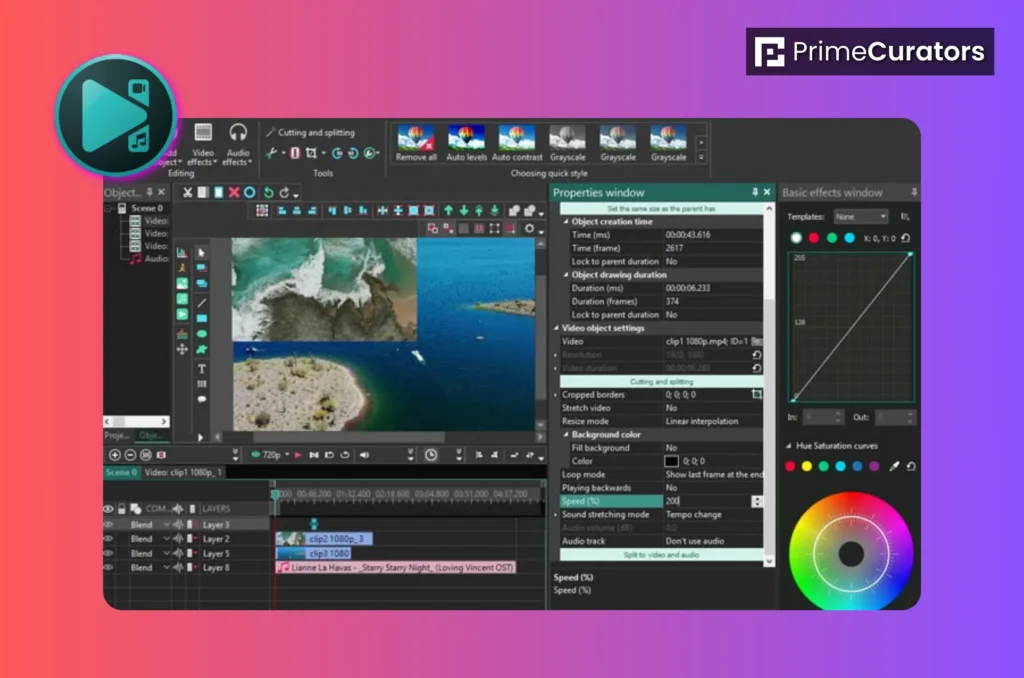
Why VSDC Is Good:
- Designed for low-end PCs
- No watermark
- Supports old Windows versions
System Requirements:
- RAM: 2GB minimum
- Processor: Intel or AMD basic CPU
Features:
- Non-linear video editing
- Chroma key (green screen)
- Color correction
- Audio effects
- Screen recording
🗂 Non-linear Editing
This means you can:
- Place clips anywhere on the timeline
- Layer video and audio
- Mix images, text, and videos without restrictions
Non-linear editing gives creative freedom like professional tools.
🎚 Advanced Visual Effects
VSDC offers:
- Filters similar to Instagram
- Transformations (zoom, blur, pixelation)
- Color correction like brightness, contrast, gamma, hue
These are more advanced than basic timelines in simple editors.
🤹 Green Screen / Chroma Key
If you have a video shot in front of a green or blue screen, VSDC lets you remove the background and replace it. This is huge for:
- Gaming intros
- YouTube explainer videos
- Product presenters
🎙 Audio Tools
VSDC includes:
- Audio mixer
- Noise removal
- Equalizer
- Echo / reverb effects
Good audio quality can make your videos feel more professional.
📹 Screen Recording
You can record your desktop directly inside VSDC — perfect for:
- Tutorials
- Software demos
- Presentations
📤 Export Wizard
VSDC has easy export profiles for:
- YouTube
- Vimeo
- Custom devices
So you don’t have to guess resolution and bitrate.
Standout: VSDC has more professional-level tools but still runs on systems many editors won’t.
Best For:
- YouTube creators
- Tutorial videos
- Business videos
VSDC may look a bit complex at first, but once you learn it, it becomes very useful.
4. Filmora (Older Version) – Best Paid Option for Low-End PC
Filmora ↗ is a popular video editor, but newer versions need a strong PC. However, older versions of Filmora work well on low-end computers.
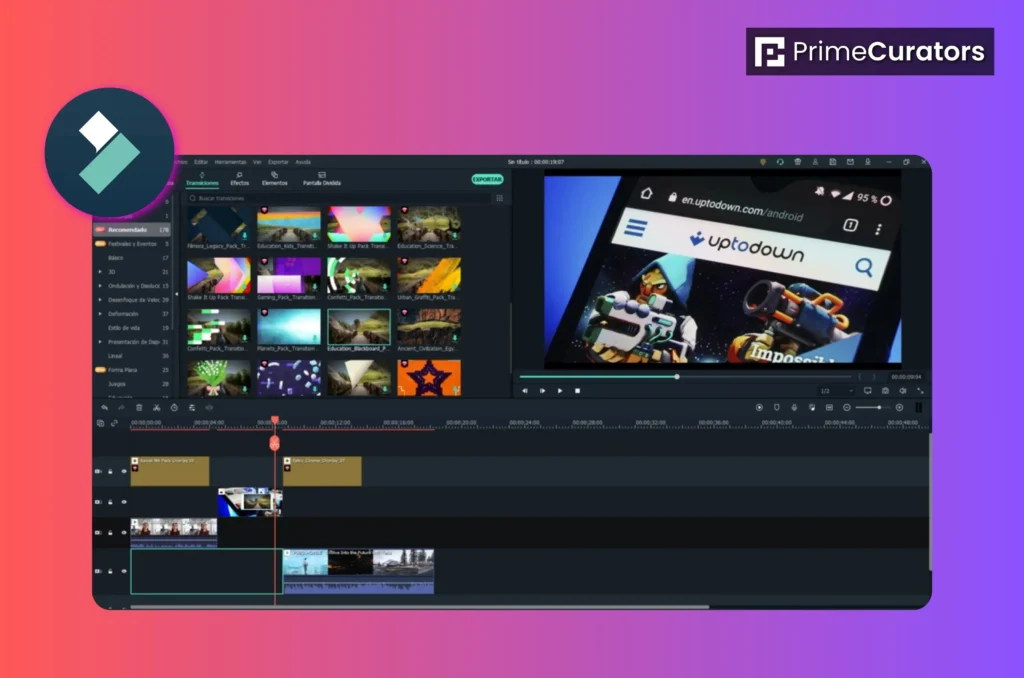
Why Filmora Is Good:
- Simple interface
- Ready-made effects
- Easy timeline editing
System Requirements:
- RAM: 4GB
- Processor: Intel i3 or similar
Features:
- Built-in effects and transitions
- Text animations
- Audio tools
🎨 Built-In Effects Library
Filmora includes:
- Text animations
- Stylish transitions
- Motion elements
- Lower-thirds
These help beginners make videos that look good quickly.
📊 Easy Timeline
Filmora’s timeline is intuitive:
- Drag and drop
- Zoom timeline
- Nest clips easily
No steep learning curve.
🎙 Audio Tools
- Auto audio sync
- Background music library
- Voiceover recording
- Volume mixer
These tools help even beginners make well-balanced audio.
⏱ Speed Control
Filmora makes it easy to:
- Slow down
- Speed up
- Reverse clips
Perfect for short clips and social media.
📤 Export
Filmora offers common presets plus custom options. The only downside on free versions is the watermark unless purchased.
Best For:
- YouTubers
- Freelancers
- Social media content
If you choose Filmora, avoid the latest version and install an older one for better performance.
5. DaVinci Resolve (Not Recommended for Low-End PC)
Many people ask about DaVinci Resolve ↗, but honestly, it is not suitable for low-end PCs.
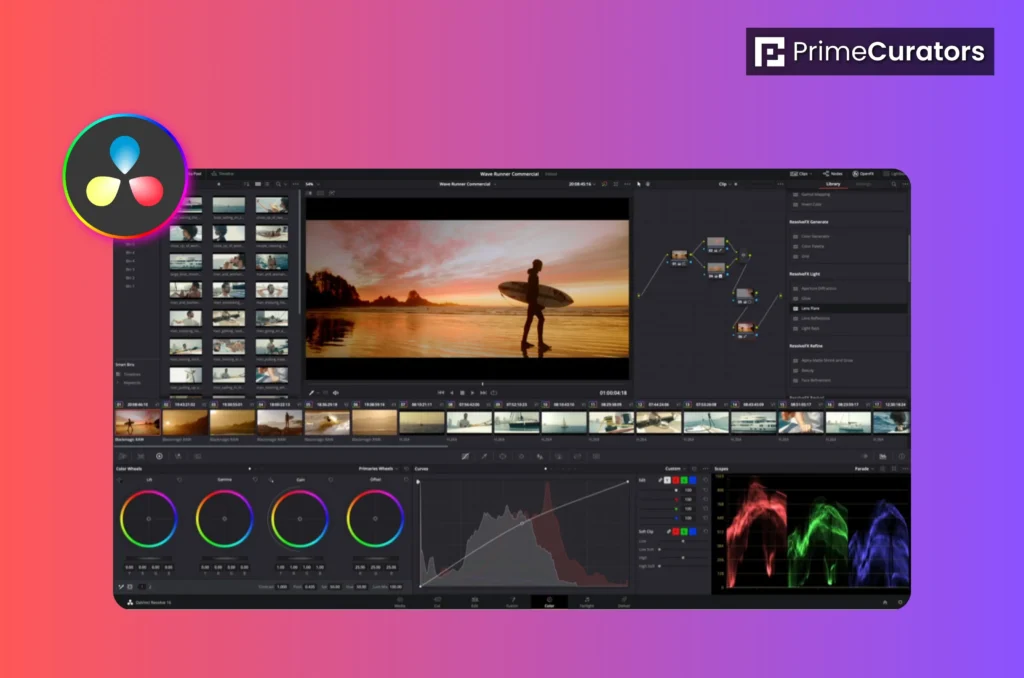
Why Not Recommended:
- Needs strong GPU
- Requires 16GB RAM
- Heavy software
DaVinci Resolve is excellent, but only for high-end systems.
6. CapCut (PC Version) – Good for Short Videos
CapCut ↗ is famous for mobile editing, but it also has a PC version. It works well on medium to low-end PCs.
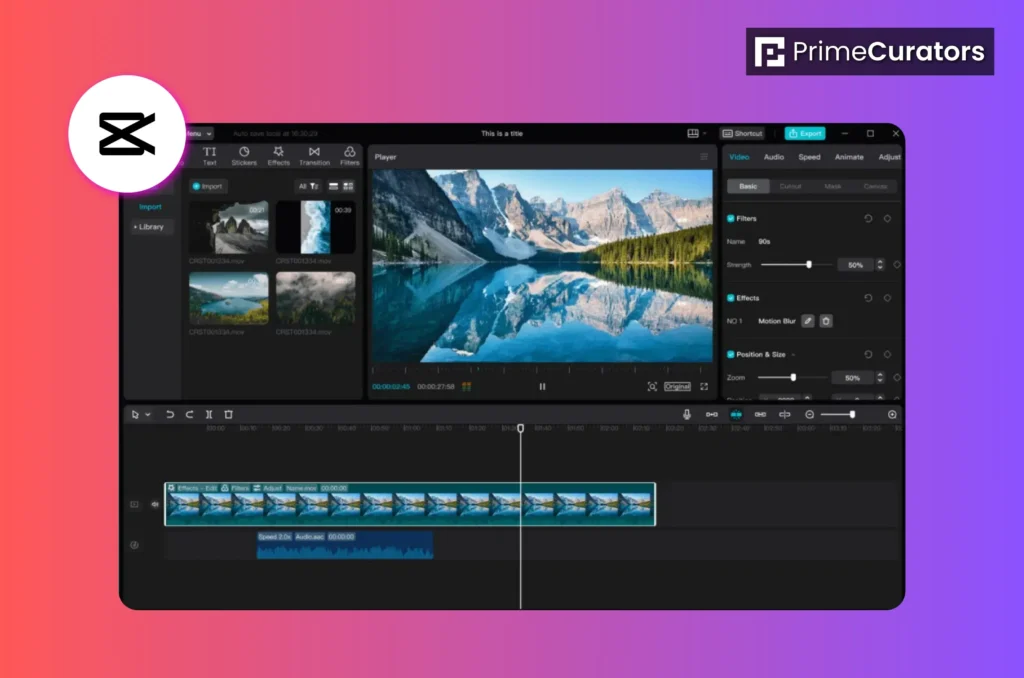
Why CapCut Is Good:
- Free
- Easy to use
- Modern effects
System Requirements:
- RAM: 4GB
- Processor: Basic dual-core
Features:
- TikTok and Reels templates
- Auto captions
- Filters and effects
Templates & Presets
CapCut has ready templates for:
- TikTok
- Reels
- Shorts
These help beginners start fast.
🎨 Effects and Filters
CapCut includes:
- Trendy visual effects
- Color filters
- Motion graphics
These enhance quick, eye-catching videos.
⏱ Smart Tools
- Auto captions (speech-to-text)
- Speed ramps
- Beat detection syncing
These save editing time and make videos feel more modern.
🎙 Audio Support
- Royalty-free music library
- Sound effects
- Easy trimming and mixing
Great for creators making short entertainment content.
Good choice: If your focus is reels / shorts and you want engaging visuals fast.
Best For:
- Short videos
- TikTok
- Instagram Reels
CapCut is perfect if you focus on short-form content.
📖 Read More:
👉 Free Online Course on Digital Marketing ↗
👉 Top 5 Free Invoice Generators Online ↗
👉 Best WP SEO Plugins to level up your website ↗
Tips to Make Video Editing Faster on Low-End PC
Video editing on a slow or old computer can be very frustrating. The software hangs, playback stutters, and exporting takes forever. But the good news is you don’t need a powerful PC to edit videos smoothly. You just need the right settings, smart habits, and a few simple tricks.
Even with the best editor, your PC can feel slow if not optimized. Follow these tips:
1. Close Background Apps
Close Chrome, games, and any other programs you don’t need before you begin editing. This releases the processor and memory on your computer.
2. Use Lower Preview Resolution
Set preview quality to low or half. Set the preview or playback resolution in your editor to low or half. This makes the video play smoothly while you edit.
3. Edit in 720p
Edit in 720p and export later in 1080p if needed. If your video is 1080p or higher, edit in 720p first. You can export in full quality when your editing is finished.
4. Avoid Heavy Effects
Avoid using too many effects, transitions, or filters while editing. Keep it simple until the final stage.
5. Clean Storage
Make sure you have at least 20GB free on your main drive. Low space can slow down your computer and the editor.
| Software | Free | Low-End Friendly | Best For |
| Shotcut | Yes | Yes | YouTube,beginners |
| OpenShot | Yes | Yes | Simple editing |
| VSDC | Yes | Yes | Tutorials, business |
| Filmora (Old) | No | Yes | Freelancers |
| CapCut | Yes | Medium | Short videos |
Which Video Editor Should You Choose?
Choosing the right video editor depends on your computer, your experience, and the type of videos you want to make. Here are some tips to help you decide:
1. For Low-End PCs
If your computer is not very powerful, choose lightweight editors that run smoothly without lag. Examples:
- Shotcut – free and simple to use
- OpenShot – easy interface, basic editing tools
- VSDC Free Video Editor – works well on older computers
2. For Beginners
If you are new to video editing, pick something easy to learn with drag-and-drop features. Examples:
- Filmora – simple interface, many ready-to-use templates
- CapCut PC – beginner-friendly with quick edits
3. For Advanced Editing
If you want professional tools and effects, choose editors with more features, but keep in mind they may need a stronger PC. Examples:
- DaVinci Resolve – advanced color correction and effects
- Adobe Premiere Pro – professional workflow and tools
4. Free vs Paid
Free editors are great for learning and simple videos. Paid editors give more effects, transitions, and faster export options. Choose based on your budget and needs.
5. Try Before You Decide
Many editors offer free versions or trials. Test a few to see which one works best on your computer and feels comfortable to use
Final Conclusion
You do not need an expensive PC to start video editing. Many free and lightweight video editors work perfectly on low-end computers. The key is choosing the right software that matches your system and your goals.
If your PC is old, start with Shotcut or VSDC. If you want very simple editing, choose OpenShot. For social media creators, CapCut is a good choice.
Video editing is about creativity, not computer power. Start small, learn slowly, and improve step by step.